How do I connect my USB-C hub to my laptop?
Connecting a USB-C hub is usually a quick plug-and-play setup, but it helps to do it in the right order so your laptop recognizes everything cleanly. Start by checking that your laptop has a USB-C port that supports the features you need (some ports handle data only, while others also support video output and charging).
Step-by-step connection
1) Plug the hub into your laptop’s USB-C port. Insert the hub’s USB-C connector firmly into the laptop. Many hubs power up immediately from the laptop, so you may see an indicator light turn on.
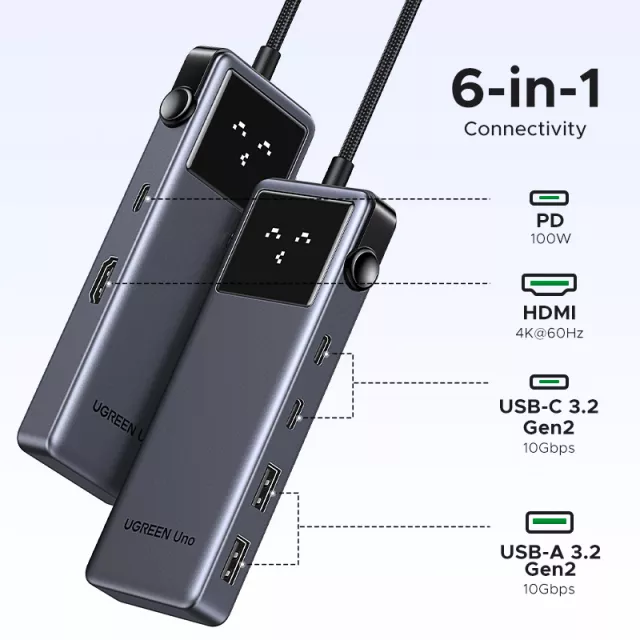
2) If you want charging passthrough, connect your USB-C charger to the hub’s PD port. Use the hub’s dedicated Power Delivery (PD) input (often labeled “PD” or “Power”). This allows the charger to power the laptop through the hub. Use a charger with enough wattage for your laptop (for example, up to 100W if your hub supports it), and use a quality USB-C cable rated for PD.
3) Connect your peripherals to the hub. Plug in USB-A devices (keyboard, mouse, flash drive), SD/microSD cards, Ethernet, or other accessories. For best performance, connect high-speed devices (like SSDs) to the hub’s fastest USB port if your hub has multiple speeds.
4) Connect an external display (if your hub has HDMI). Plug an HDMI cable from the hub to your monitor or TV, then select the correct input on the display. If the screen doesn’t appear, open your laptop’s display settings and choose “Duplicate” or “Extend.”
Quick troubleshooting if something doesn’t work
If a port isn’t responding, unplug the hub, wait a few seconds, and reconnect. Try a different USB-C port (if available), swap cables (especially HDMI or PD), and confirm your laptop supports video output over USB-C if you’re using HDMI. Some devices may also need more power, so connecting the PD charger can stabilize performance.
For a deeper walkthrough of ports, video output, data speeds, and charging details, see this guide: https://originzerostores.com/blog/guide-6-in-1-usb-c-hub-4k-hdmi-10gbps-100w-pd-guide/.
FAQ
Why isn’t my USB-C hub showing my monitor on HDMI?
Your laptop’s USB-C port may not support video output (DisplayPort Alt Mode), the HDMI cable/adapter may be faulty, or the display input may be set incorrectly. Try another HDMI cable, connect the hub’s PD power, and confirm the monitor is set to the right HDMI input.
Recommended for you
How do I connect my USB-C hub to my laptop?
Connecting a USB-C hub is usually a quick plug-and-play setup, but it helps to do it in the right order so your laptop recognizes everything cleanly. Start by checking that your laptop has a USB-C port that supports the features you need (some ports handle data only, while others also support video output and charging).
Step-by-step connection
1) Plug the hub into your laptop’s USB-C port. Insert the hub’s USB-C connector firmly into the laptop. Many hubs power up immediately from the laptop, so you may see an indicator light turn on.
2) If you want charging passthrough, connect your USB-C charger to the hub’s PD port. Use the hub’s dedicated Power Delivery (PD) input (often labeled “PD” or “Power”). This allows the charger to power the laptop through the hub. Use a charger with enough wattage for your laptop (for example, up to 100W if your hub supports it), and use a quality USB-C cable rated for PD.
3) Connect your peripherals to the hub. Plug in USB-A devices (keyboard, mouse, flash drive), SD/microSD cards, Ethernet, or other accessories. For best performance, connect high-speed devices (like SSDs) to the hub’s fastest USB port if your hub has multiple speeds.
4) Connect an external display (if your hub has HDMI). Plug an HDMI cable from the hub to your monitor or TV, then select the correct input on the display. If the screen doesn’t appear, open your laptop’s display settings and choose “Duplicate” or “Extend.”
Quick troubleshooting if something doesn’t work
If a port isn’t responding, unplug the hub, wait a few seconds, and reconnect. Try a different USB-C port (if available), swap cables (especially HDMI or PD), and confirm your laptop supports video output over USB-C if you’re using HDMI. Some devices may also need more power, so connecting the PD charger can stabilize performance.
For a deeper walkthrough of ports, video output, data speeds, and charging details, see this guide: https://originzerostores.com/blog/guide-6-in-1-usb-c-hub-4k-hdmi-10gbps-100w-pd-guide/.
FAQ
Why isn’t my USB-C hub showing my monitor on HDMI?
Your laptop’s USB-C port may not support video output (DisplayPort Alt Mode), the HDMI cable/adapter may be faulty, or the display input may be set incorrectly. Try another HDMI cable, connect the hub’s PD power, and confirm the monitor is set to the right HDMI input.
Recommended for you
How do I connect my USB-C hub to my laptop?
Connecting a USB-C hub is usually a quick plug-and-play setup, but it helps to do it in the right order so your laptop recognizes everything cleanly. Start by checking that your laptop has a USB-C port that supports the features you need (some ports handle data only, while others also support video output and charging).
Step-by-step connection
1) Plug the hub into your laptop’s USB-C port. Insert the hub’s USB-C connector firmly into the laptop. Many hubs power up immediately from the laptop, so you may see an indicator light turn on.
2) If you want charging passthrough, connect your USB-C charger to the hub’s PD port. Use the hub’s dedicated Power Delivery (PD) input (often labeled “PD” or “Power”). This allows the charger to power the laptop through the hub. Use a charger with enough wattage for your laptop (for example, up to 100W if your hub supports it), and use a quality USB-C cable rated for PD.
3) Connect your peripherals to the hub. Plug in USB-A devices (keyboard, mouse, flash drive), SD/microSD cards, Ethernet, or other accessories. For best performance, connect high-speed devices (like SSDs) to the hub’s fastest USB port if your hub has multiple speeds.
4) Connect an external display (if your hub has HDMI). Plug an HDMI cable from the hub to your monitor or TV, then select the correct input on the display. If the screen doesn’t appear, open your laptop’s display settings and choose “Duplicate” or “Extend.”
Quick troubleshooting if something doesn’t work
If a port isn’t responding, unplug the hub, wait a few seconds, and reconnect. Try a different USB-C port (if available), swap cables (especially HDMI or PD), and confirm your laptop supports video output over USB-C if you’re using HDMI. Some devices may also need more power, so connecting the PD charger can stabilize performance.
For a deeper walkthrough of ports, video output, data speeds, and charging details, see this guide: https://originzerostores.com/blog/guide-6-in-1-usb-c-hub-4k-hdmi-10gbps-100w-pd-guide/.
FAQ
Why isn’t my USB-C hub showing my monitor on HDMI?
Your laptop’s USB-C port may not support video output (DisplayPort Alt Mode), the HDMI cable/adapter may be faulty, or the display input may be set incorrectly. Try another HDMI cable, connect the hub’s PD power, and confirm the monitor is set to the right HDMI input.
Recommended for you











Leave a comment